BLOG OVERVIEW
YouTube Cards: What They Are, How to Add Them, and When They Actually Help
In
YouTube
by
Edward Wood
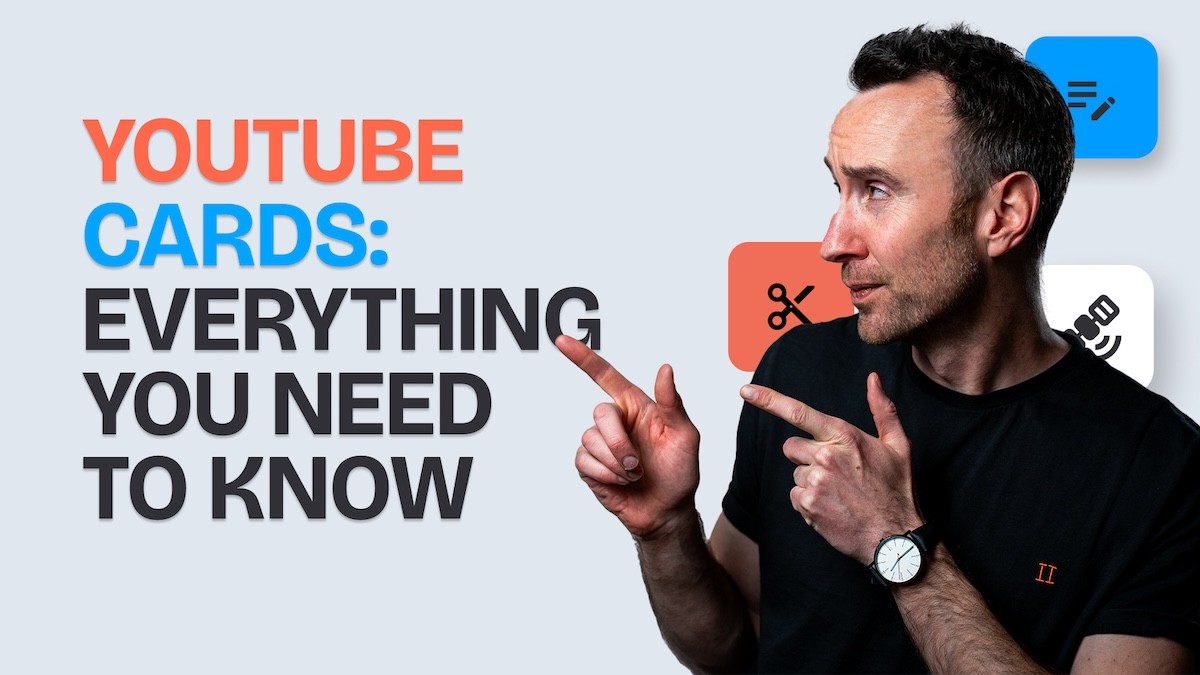
YouTube cards are one of those features that most business channels have heard of but never use strategically. They're the small interactive elements that appear as a teaser in the top-right corner of a video during playback, expanding when the viewer clicks on them. Unlike end screens, which only work in the final seconds of a video, cards can appear at any point during playback, which makes them a more flexible (and more misused) tool.
At Humble&Brag, we use cards selectively on client channels. The reason for selectivity is that a poorly placed card can hurt retention by sending viewers away from the current video before they've finished watching. A well-placed card, on the other hand, can capture a viewer at exactly the moment they're most interested in a related topic, driving session time that benefits the channel overall.
What YouTube Cards Are
YouTube cards are interactive overlays you can add to any video at any timestamp. When a card triggers, a small teaser icon appears in the top-right corner of the video. If the viewer clicks it, the card expands to show the linked content.
There are four types of cards available in 2026. Video cards link to another video on YouTube. Playlist cards link to a playlist. Channel cards link to another YouTube channel (useful for collaborations). Link cards point to an approved external website (available only to channels in the YouTube Partner Programme).
You can add up to five cards per video. Each card is assigned a specific timestamp, which determines when its teaser appears.
How to Add Cards
Adding cards is straightforward. In YouTube Studio, go to Content, select the video you want to edit, click Editor, then Cards. Choose the card type, select the destination (video, playlist, channel, or link), and set the timestamp where you want it to appear. The teaser will show briefly at that timestamp, and viewers who click will be taken to the linked content.
For video cards, you can either choose a specific video or let YouTube select the best match for the viewer. For link cards, the URL must be from an associated website that you've verified in your channel settings.
Cards vs End Screens: When to Use Which
This is the question most creators get wrong because they use both interchangeably. Cards and end screens serve fundamentally different purposes.
End screens are designed for the end of the video, after the main content is delivered. They exist to keep the viewer on your channel by suggesting the next video to watch. Every video over 25 seconds should have an end screen.
Cards are designed for moments during the video where the viewer might want to go deeper on a specific subtopic. They're contextual pointers, not exit prompts. The viewer is watching a video about YouTube content strategy and you mention competitor analysis as a subtopic. A card at that moment, linking to your competitor analysis guide, serves the viewer who wants to go deeper without requiring everyone to navigate to a different video.
The key distinction: end screens are for after the value is delivered. Cards are for during the value delivery, at moments where a tangent to related content would genuinely help the viewer. If you use cards too aggressively, you send viewers away from the current video prematurely, which hurts your retention metrics. If you use them too sparingly, you miss opportunities to drive session time.
Strategic Card Placement for Business Channels
The placement rules we follow at Humble&Brag are simple.
Place cards at natural reference points. When the script mentions another topic you've covered, a specific tool, or a concept that has its own dedicated video, that's a card moment. The viewer is already thinking about that topic. The card surfaces a path to go deeper.
Never place cards in the first 30 seconds. The opening of your video is where retention is most fragile. A card teaser appearing in the first 30 seconds distracts from the hook and gives the viewer a reason to leave before they've committed to the content. If your retention curves already show a steep early drop, adding early cards will make the problem worse.
Limit cards to two or three per video. Five cards is the maximum YouTube allows, but using all five creates a cluttered experience and dilutes the impact of each one. Two to three cards, placed at genuinely relevant moments, performs better than five scattered throughout.
Time the card to match the verbal reference. If the presenter says "we covered this in our guide to YouTube descriptions," the card should appear at that exact moment, not 30 seconds before or after. The verbal cue is what makes the viewer look for the card. Without the verbal reference, most viewers ignore the teaser entirely.
Don't place a card in the final 20 seconds. This is end screen territory. A card competing with an end screen for the viewer's attention in the closing seconds reduces clicks on both. Let end screens handle the video's conclusion.
Measuring Card Performance
YouTube Studio provides card analytics under the Engagement tab. You can see total card teaser impressions (how many times the teaser icon appeared), teaser click-through rate (how many viewers clicked the teaser), and card clicks (how many viewers interacted with the expanded card).
A healthy teaser CTR for cards is 1 to 3 per cent. This sounds low, but cards are a passive element that most viewers don't actively look for. The viewers who do click are typically highly engaged and interested in the specific topic the card references, making them valuable session-time contributors.
If your card CTR is below 0.5 per cent, the cards are either poorly timed (not aligned with a verbal reference), linking to irrelevant content, or placed in low-engagement sections of the video where viewers have already tuned out.
Cards as an Internal Linking Strategy
For business channels with a growing content library, cards function as YouTube's equivalent of internal links on a blog. Each card creates a connection between two pieces of content, and the combination of these connections builds a navigation structure that keeps viewers inside your content ecosystem.
Think of it this way: your YouTube descriptions provide text-based links. Your end screens provide exit-point links. Your cards provide mid-content links. Together, these three mechanisms create a comprehensive internal linking architecture that mirrors what we build on the blog side with cross-referenced article links.
The channels that build this architecture intentionally, with cards, end screens, and description links all pointing to related content in a logical flow, create a viewer experience that naturally extends session time and builds the habit of watching multiple videos per visit.
Common Card Mistakes
Using cards as ads. A card linking to your product page or lead magnet interrupts the viewing experience in a way that feels promotional rather than helpful. Save product links for the description CTA and verbal callouts. Cards should link to other content, not sales pages.
Too many cards. Five cards on a 10-minute video creates a teaser notification roughly every two minutes, which becomes visual noise. Two to three cards is the sweet spot.
Cards without verbal references. The teaser icon is easy to miss. Without the presenter saying "I covered this in [video title]" at the moment the card appears, most viewers never notice it.
Not updating old videos. As you publish new content that's relevant to older videos, go back and add cards to those older videos pointing to the new content. This retroactive linking is one of the easiest ways to drive views to new videos from your existing library.
Quick Setup Checklist
When adding cards to your next video, check the following: each card is timed to match a verbal reference in the script, no cards appear in the first 30 seconds or the final 20 seconds, you're using no more than three cards total, each card links to genuinely relevant content (not a random video), and the linked content is something the current viewer would actually want to watch next.
For a comprehensive review of your channel's card, end screen, and metadata setup, our YouTube channel audit checklist covers every element. If you want a professional assessment, get in touch.